ConductorOne provides identity governance and just-in-time provisioning for Entra ID. Integrate your Entra ID instance with ConductorOne to run user access reviews (UARs), enable just-in-time access requests, and automatically provision and deprovision access.
The Entra ID connector supports automatic account provisioning and deprovisioning.When a new account is created by ConductorOne, the account’s password will be sent to a vault.*Due to limitations of the Microsoft Graph API and Office 365 Exchange Online API, the connector cannot provision Mail Enabled Security groups or Distribution groups using OAuth.
Connector actions are custom capabilities that extend ConductorOne automations with app-specific operations. You can use connector actions in the Perform connector action automation step.
Sets or updates a user’s manager relationship. Accepts manager ID, UPN, or Employee ID. Leave manager_identifier empty to remove the current manager.
check_upn
proposed_upn (string, required)
Checks if a User Principal Name (UPN) is available. If taken, finds an available UPN by appending incrementing numbers.
update_profile
user_id (string, required) Plus optional profile fields
Updates user profile attributes including mail, displayName, jobTitle, employeeId, department, companyName, country, and extensionAttribute1 through extensionAttribute15.
In Entra admin center, navigate to App registrations.
2
Click + New registration.
3
Give the application a name, such as “ConductorOne”, and select the supported account type relevant to your Entra installation. You do not need to set a redirect URL.
4
Click Register.
5
The new app is created. Carefully copy and save the Application (client) ID and the Directory (tenant) ID shown on the application summary page.
6
Next, we’ll generate a client secret for this app. Click Certificates & secrets.
7
Click + New client secret.
8
Give the client secret a description and set its expiration.
9
Click Add.
10
The client secret is generated. Carefully copy and save the Secret Value.
To deprovision users who have a privileged role assigned to them, the app requires, in addition to the stated permissions, a privileged role such as Global Administrator or Privileged Authentication Administrator.
4
Navigate to Identity > Applications > Enterprise applications > All applications.
5
Locate your new ConductorOne app.
If the app doesn’t appear in the list right away, wait a minute and click Refresh.
On the app’s page, click Permissions on the left side.
6
Click Grant admin consent for ….
That’s it! Next, move on to the connector configuration instructions.
Optional: Configure Exchange groups provisioning with client secret-based auth
To set up the connector to support provisioning owners and members to Exchange groups, which are distribution lists and mail-enabled security groups, follow these steps:
1
In the Microsoft Entra Admin Center, navigate to App registrations and click the name of the app you created for this connector.
2
In the application dashboard, click API permissions > Add a permission.
3
Select APIs my organization uses. Search for and select “Office 365 Exchange Online” (the application ID is 00000002-0000-0ff1-ce00-000000000000).
4
Click on Application permissions. Search for and select “Exchange” and enable the Exchange.ManageAsApp permission.
5
Click Add permissions.
6
When prompted to grant admin consent, click Yes.
7
Next, grant global permissions. Navigate to Admin Center > Roles & admins.
8
Search for and select “Exchange Administrator”, then click Add assignments.
9
Click No member selected, then find the application used for this connector on the Enterprise applications tab and click Select.
10
Click Next.
11
On the Settings tab, select Active as the Assignment type.
12
Check Permanently assigned and add a justification, such as:Required to allow the ConductorOne connector to grant and revoke memberships for managed distribution lists and mail-enabled security groups, both managed by Exchange.
13
Click Assign.
That’s it! Your connector is now ready to allow the provisioning of users as owners and members in Exchange groups.
The Connector Administrator or Super Administrator role in ConductorOne
Access to the set of Entra ID credentials generated by following the instructions above
Cloud-hosted
OAuth
Self-hosted
Follow these instructions to use a built-in, no-code connector hosted by ConductorOne.
1
In ConductorOne, navigate to Integrations > Connectors and click Add connector.
2
Search for Entra ID and click Add.
3
Choose how to set up the new Entra ID connector:
Add the connector to a currently unmanaged app (select from the list of apps that were discovered in your identity, SSO, or federation provider that aren’t yet managed with ConductorOne)
Add the connector to a managed app (select from the list of existing managed apps)
Create a new managed app
4
Set the owner for this connector. You can manage the connector yourself, or choose someone else from the list of ConductorOne users. Setting multiple owners is allowed.If you choose someone else, ConductorOne will notify the new connector owner by email that their help is needed to complete the setup process.
5
Click Next.
6
Find the Settings area of the page and click Edit.
7
Select Client secret.
8
Paste the tenant ID into the Entra tenant ID field.
9
Paste the client ID into the Entra client ID field.
10
Paste the client secret into the Entra client secret field.
11
Optional. Check the box if you want to Skip syncing Active Directory Server groups.
12
Optional If you connect to a Microsoft Graph API domain other than graph.microsoft.com, specify your domain in the Microsoft Graph domain field.
13
Optional. To capture Entra usage data, click to enable Fetch user sign-in activity.The usage data feature requires a Microsoft Entra ID P1 or P2 license. Usage data collection is not supported on Microsoft Entra ID Free licenses.
14
Optional. Click to opt into Schedule SCIM provisioning, which forces an Entra SCIM sync when a new entitlement is provisioned for a user in ConductorOne.
15
Optional. Click to Disable resource changed event feed. These logs are enabled by default.Make sure to disable this feed if the List directoryAudits API endpoint is not supported in your location.
16
Optional. Click to enable Sync on-premises extension attributes for users if you want to sync on-premises extension attributes.
17
Click Save.
18
The connector’s label changes to Syncing, followed by Connected. You can view the logs to ensure that information is syncing.
That’s it! Your Entra ID connector is now pulling access data into ConductorOne.
Follow these instructions to set up a built-in, no-code connector hosted by ConductorOne using OAuth.
In ConductorOne, navigate to Integrations > Connectors and click Add connector.
2
Search for Entra ID and click Add.
3
Choose how to set up the new Entra ID connector:
Add the connector to a currently unmanaged app (select from the list of apps that were discovered in your identity, SSO, or federation provider that aren’t yet managed with ConductorOne)
Add the connector to a managed app (select from the list of existing managed apps)
Create a new managed app
4
Set the owner for this connector. You can manage the connector yourself, or choose someone else from the list of ConductorOne users. Setting multiple owners is allowed.If you choose someone else, ConductorOne will notify the new connector owner by email that their help is needed to complete the setup process.
5
Click Next.
6
Find the Settings area of the page and click Edit.
7
Select OAuth.
8
Specify the ID of the Entra tenant you’re integrating in the Entra tenant ID field.
9
Optional. Check the box if you want to Skip syncing Active Directory Server groups.
10
Optional If you connect to a Microsoft Graph API domain other than graph.microsoft.com, specify your domain in the Microsoft Graph domain field.
11
Optional. To capture Entra usage data, click to enable Fetch user sign-in activity.The usage data feature requires a Microsoft Entra ID P1 or P2 license. Usage data collection is not supported on Microsoft Entra ID Free licenses.
12
Optional. Click to opt into Schedule SCIM provisioning, which forces an Entra SCIM sync when a new entitlement is provisioned for a user in ConductorOne.
13
Optional. Click to Disable resource changed event feed. These logs are enabled by default.Make sure to disable this feed if the List directoryAudits API endpoint is not supported in your location.
14
Optional. Click to enable Sync on-premises extension attributes for users if you want to sync on-premises extension attributes.
15
Click Login with OAuth.
16
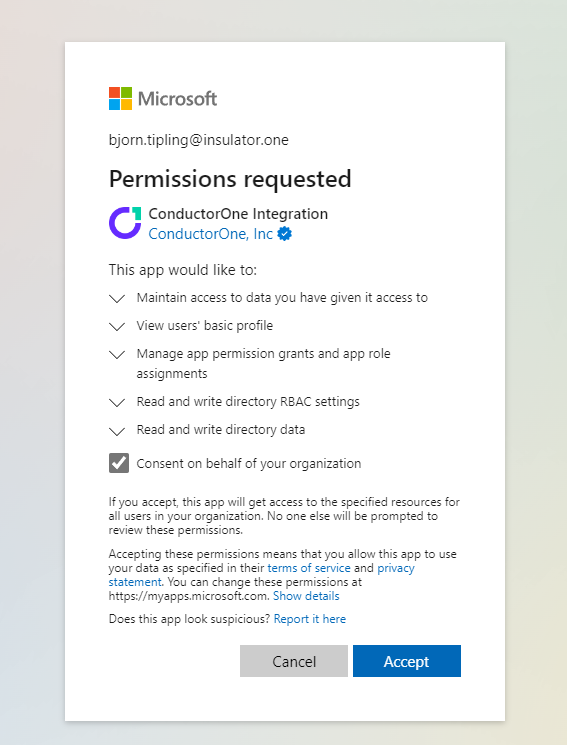
Log in and authorize ConductorOne with your Entra ID instance.In order for the integration to work properly, you must consent to all permissions:
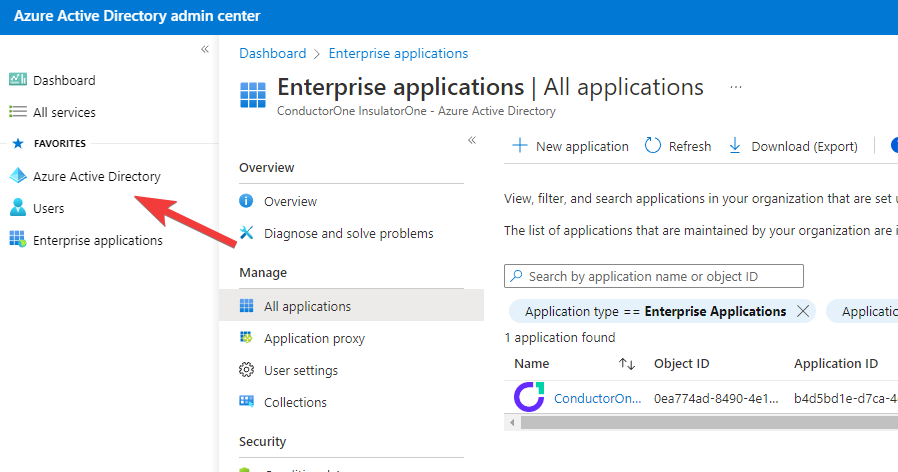
In the Entra ID control panel, go to Enterprise Applications.
2
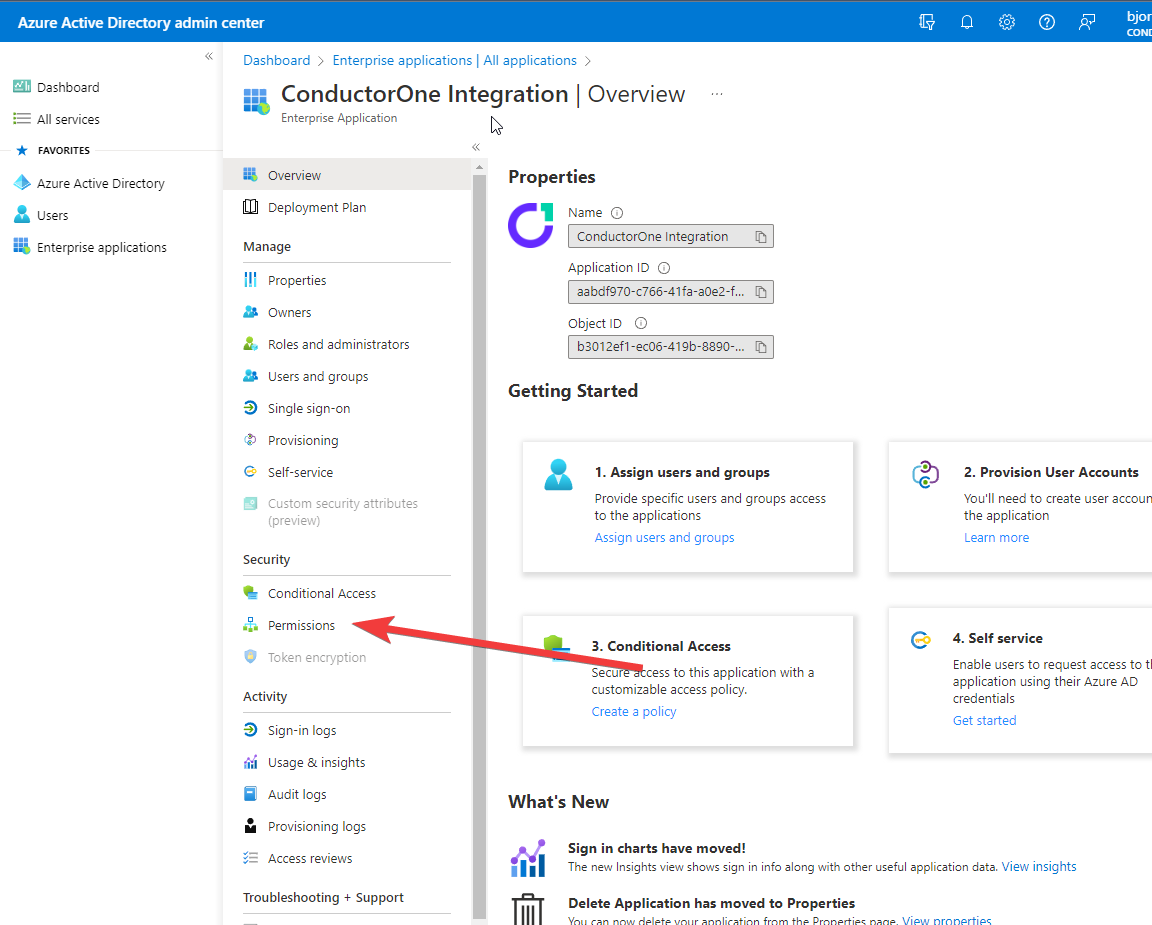
Click the ConductorOne Integration app (not to be confused with the ConductorOne SSO app, which is used to log into ConductorOne, not to synchronize your data).If the ConductorOne Integration app doesn’t appear in the list of apps right away, wait a minute and click Refresh.
3
On the ConductorOne Integration page, click Permissions on the left side.
4
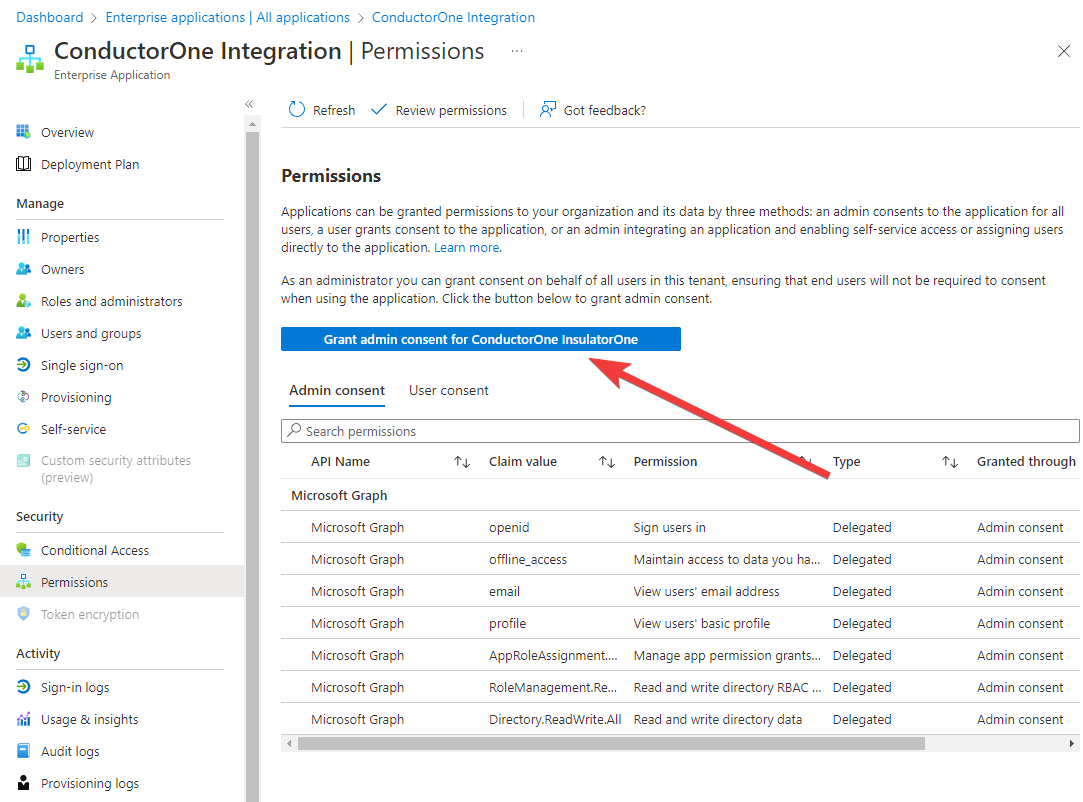
Click Grant admin consent for … on the ConductorOne Integration app permissions page.
Return to the Entra ID integration in ConductorOne by clicking the Entra ID tile on the Integrations page.
2
Click the Entra ID connector link that shows today’s date in the Connected on column.
3
Click Login with OAuth a second time to complete the process and authorize ConductorOne to obtain an access token with the permissions you’ve just granted.
That’s it! Your Entra ID connector is now pulling access data into ConductorOne.
Follow these instructions to use the Entra ID connector, hosted and run in your own environment.When running in service mode on Kubernetes, a self-hosted connector maintains an ongoing connection with ConductorOne, automatically syncing and uploading data at regular intervals. This data is immediately available in the ConductorOne UI for access reviews and access requests.
In ConductorOne, navigate to Integrations > Connectors > Add connector.
2
Search for Baton and click Add.
3
Choose how to set up the new Entra ID connector:
Add the connector to a currently unmanaged app (select from the list of apps that were discovered in your identity, SSO, or federation provider that aren’t yet managed with ConductorOne)
Add the connector to a managed app (select from the list of existing managed apps)
Create a new managed app
4
Set the owner for this connector. You can manage the connector yourself, or choose someone else from the list of ConductorOne users. Setting multiple owners is allowed.If you choose someone else, ConductorOne will notify the new connector owner by email that their help is needed to complete the setup process.
5
Click Next.
6
In the Settings area of the page, click Edit.
7
Click Rotate to generate a new Client ID and Secret.Carefully copy and save these credentials. We’ll use them in Step 2.
# baton-microsoft-entra-secrets.yamlapiVersion: v1kind: Secretmetadata: name: baton-microsoft-entra-secretstype: OpaquestringData: # ConductorOne credentials BATON_CLIENT_ID: <ConductorOne client ID> BATON_CLIENT_SECRET: <ConductorOne client secret> # Entra ID credentials BATON_ENTRA_CLIENT_ID: <Entra ID application (client) ID> BATON_ENTRA_CLIENT_SECRET: <Entra ID client secret> BATON_ENTRA_TENANT_ID: <Entra ID directory (tenant) ID> # Optional: include if you want ConductorOne to provision access using this connector # BATON_PROVISIONING: "true" # Optional: include if you want to skip syncing Active Directory Server groups # BATON_SKIP_AD_GROUPS: "true" # Optional: include if you want to connect to a domain other than graph.microsoft.com # BATON_GRAPH_DOMAIN: <Microsoft Graph API domain> # Optional: include to fetch user sign-in activity (requires Entra ID P1 or P2 license) # BATON_SIGN_IN_ACTIVITY: "true" # Optional: include to force an Entra SCIM sync when new entitlements are provisioned # BATON_SCHEDULE_SCIM_PROVISIONING: "true" # Optional: include if you want to disable audit logs # BATON_DISABLE_AUDIT_LOG_FEED: "true" # Optional: include to sync on-premises extension attributes for users # BATON_ON_PREMISES_EXTENSION_ATTRIBUTES: "true"
See the connector’s README or run --help to see all available configuration flags and environment variables.
Create a namespace in which to run ConductorOne connectors (if desired), then apply the secret config and deployment config files.
2
Check that the connector data uploaded correctly. In ConductorOne, click Apps. On the Managed apps tab, locate and click the name of the application you added the Entra ID connector to. Entra ID data should be found on the Entitlements and Accounts tabs.
That’s it! Your Entra ID connector is now pulling access data into ConductorOne.
If Entra ID is your company’s identity provider (meaning that it is used to SSO into other software), the integration sync will automatically create applications in ConductorOne for all of your SCIMed software. Before you move on, review the Create applications page for important information about how to set up integrations with the SCIMed apps.