

What can I do with the ConductorOne Slack app?
Use the ConductorOne Slack app to interact directly with ConductorOne without leaving Slack. Once the ConductorOne Slack app is installed for your workspace, you and your colleagues can:-
Request access from anywhere in Slack using the
/c1 requestcommand: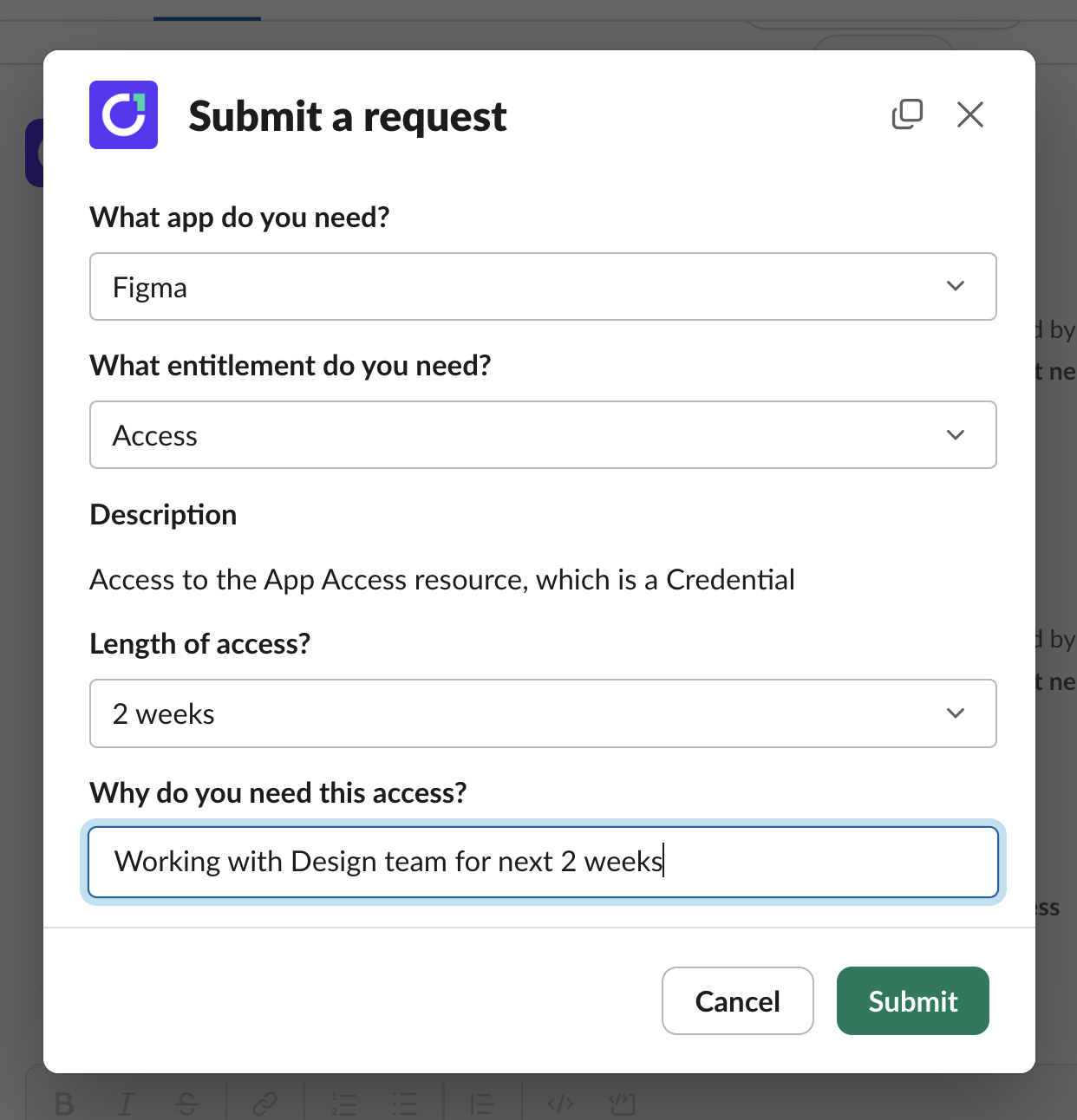
-
Track the progress of your open access requests:
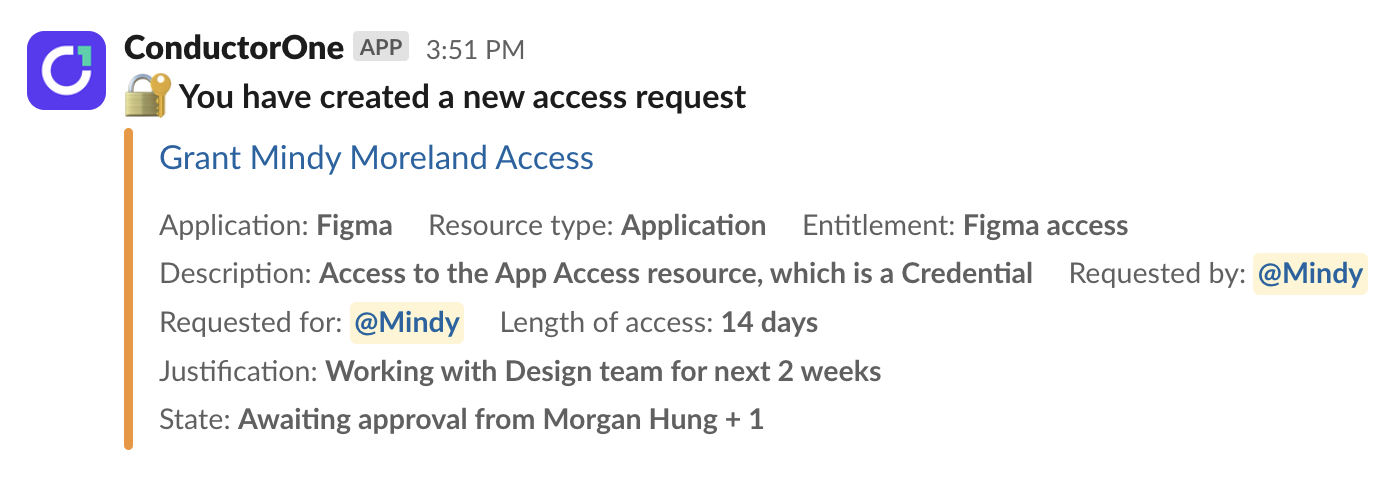
-
Get notified when your review is needed on a colleague’s access request, and approve or deny the request without leaving Slack:
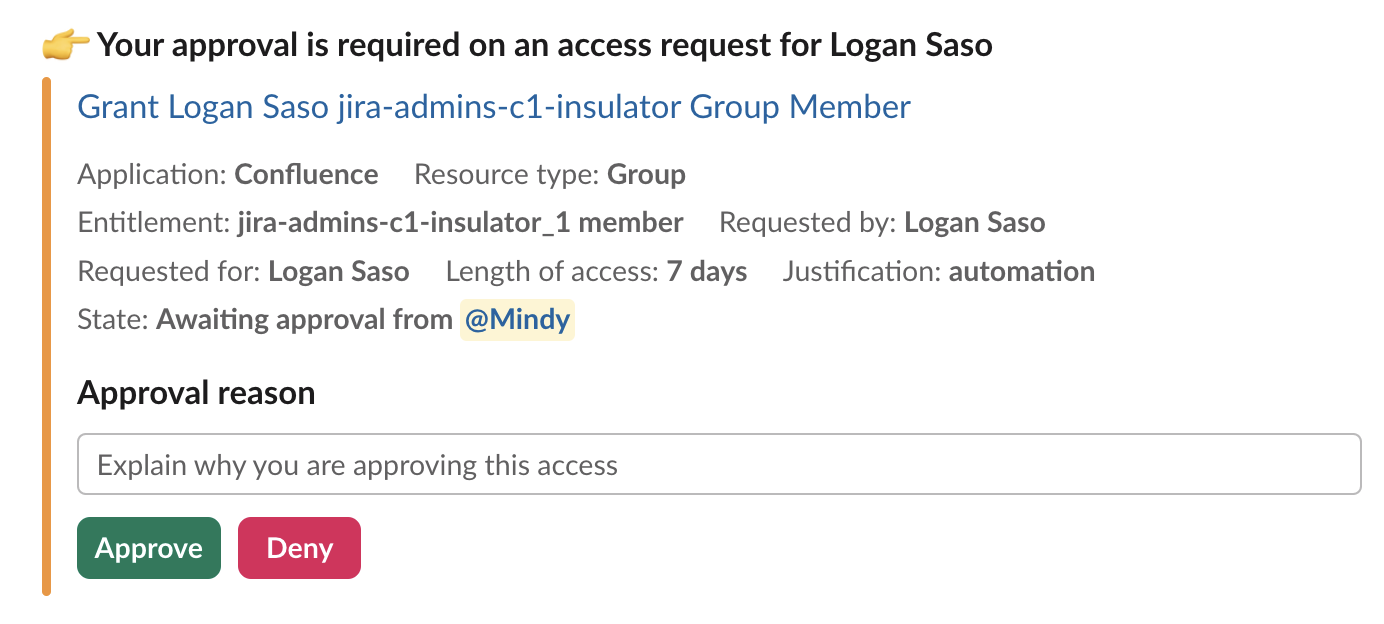
-
Get notified when you have a manual provisioning or deprovisioning assignment, and mark it complete without leaving Slack:
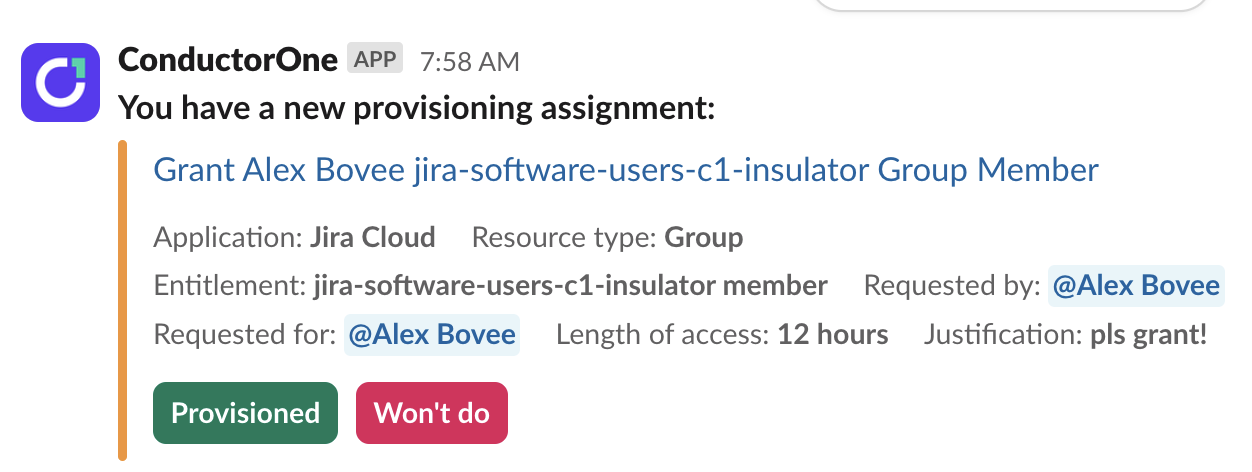
-
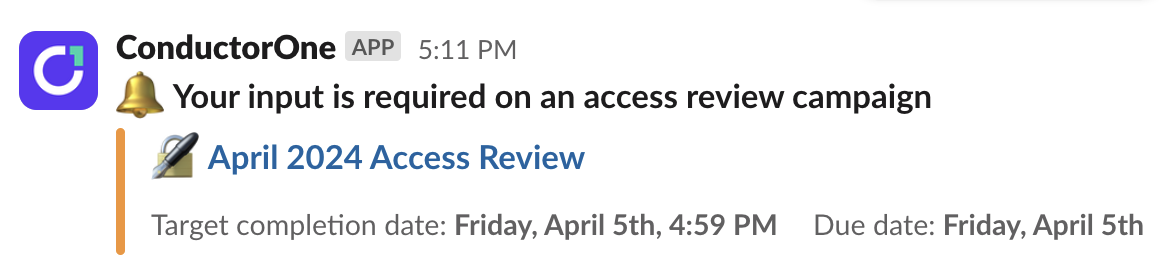
Get notified when there are access review tasks assigned to you as part of an access review campaign:
Install the ConductorOne Slack app for your organization
Approve the ConductorOne app for use in your organization’s Slack workspace.
That’s it! You’ll be directed back to the ConductorOne Settings page, where you’ll see that your Slack workspace is now connected.
Add the ConductorOne Slack app to an individual workspace
That’s it! You can now interact with ConductorOne directly from Slack.
Create a campaign Slack channel
During an access review campaign, the campaign owner can send notifications to fellow campaign owners and reviewers in a new or existing Slack channel.Navigate to the campaign’s Configuration tab.
- If you haven’t yet started the campaign, the Configuration tab is shown before you prepare the campaign and again before you start the campaign.
- If the campaign is in progress, the Configuration tab is available on the campaign’s main page.
Enter a Slack channel name, either an existing channel in your workspace that you’d like to add campaign notifications to, or a name for a new channel you want to create for this purpose. Slack does not accept spaces or special characters in channel names.
Optional. If you’re creating a new Slack channel, enter a description of the channel, up to 250 characters.